Profilarr
Setting it up
On Profilarr’s card, enter its URL - for example http://profilarr:6868 - and an API key. Make one in Profilarr’s Settings > Security > API Keys > New:
- Name: something like
Backuparr. - Expires After: Never - a key stops working when it expires (the default is 90 days), and backups with it.
- Access: only what Backuparr uses - System: Read, Jobs: Read and Backups: Read & write - or Full access.
Profilarr shows the key once: copy it onto the card, then click Test connection.
What’s in a backup
Profilarr strips secrets from its backups: Arr instances (their URLs, API keys and sync settings), notification services, accounts and sessions, API keys, linked database credentials, and AI and TMDB keys. Re-add them after a restore.
Restoring
Profilarr’s restore is a button on its own Settings > Backups page, applied when it restarts, with no API, so Backuparr can’t restore it itself. Pick Profilarr and a backup on Backuparr’s Restore tab: instead of Restore it shows a Download button and these steps.
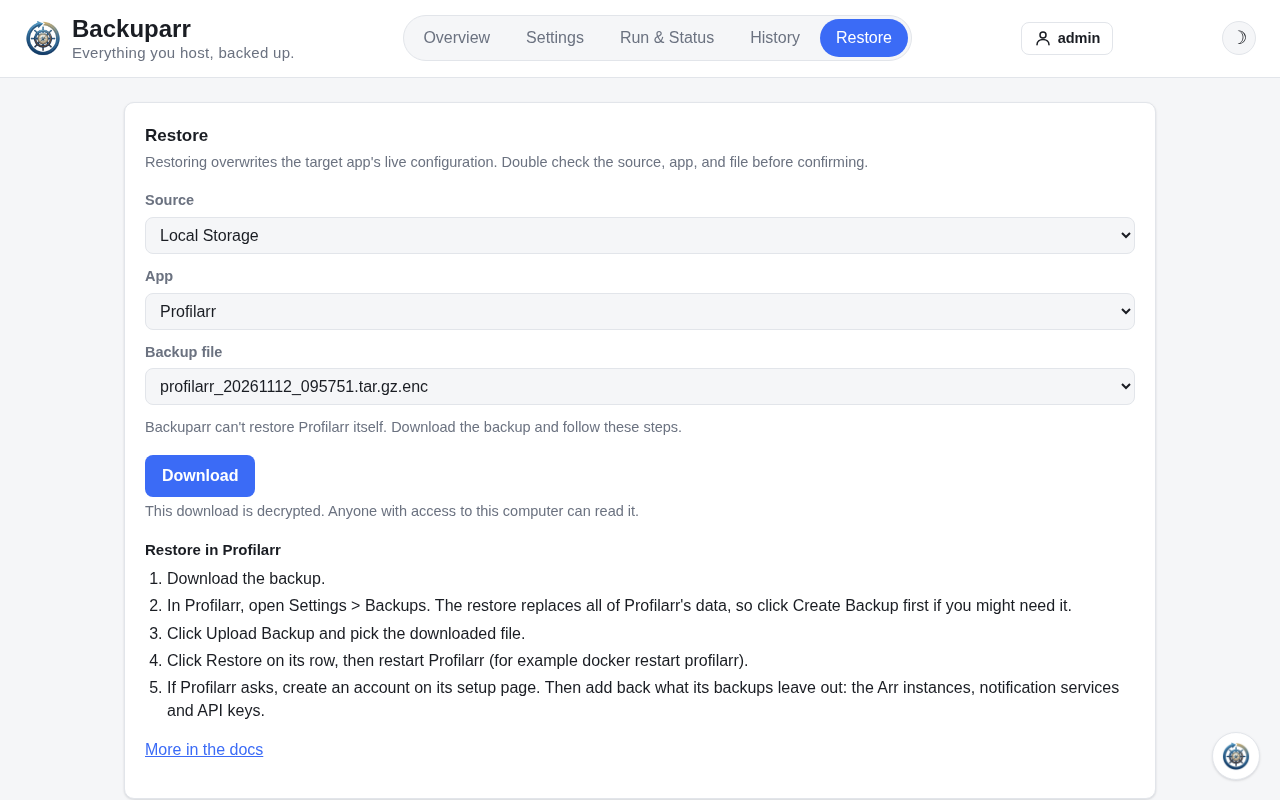
- Download the backup. An encrypted backup downloads decrypted, as a
.tar.gz; anyone with access to that computer can read it, so delete it when you’re done. - In Profilarr, open Settings > Backups. The restore replaces all of Profilarr’s data and can’t be undone once it restarts, so click Create Backup first if you might need what’s there.
- Click Upload Backup and pick the downloaded file (Profilarr takes only
.tar.gzfiles, up to 1 GB). - Click Restore on its row, then restart Profilarr, for example
docker restart profilarr. Until then a banner names the backup and lets you cancel. - If you sign in with a password, Profilarr sends you to its setup page to create an account. Then add back the secrets listed above.
Profilarr’s own guide, Backups, covers the rest, including moving to a new machine. Settings in your compose file (such as ORIGIN, AUTH and the OIDC_ variables) aren’t in any backup, so keep that file too. The same backup can also be downloaded from History.