Restoring
Restoring an app
- Rebuilding a server? Re-create the app’s container from your compose file first, and install the version the backup came from.
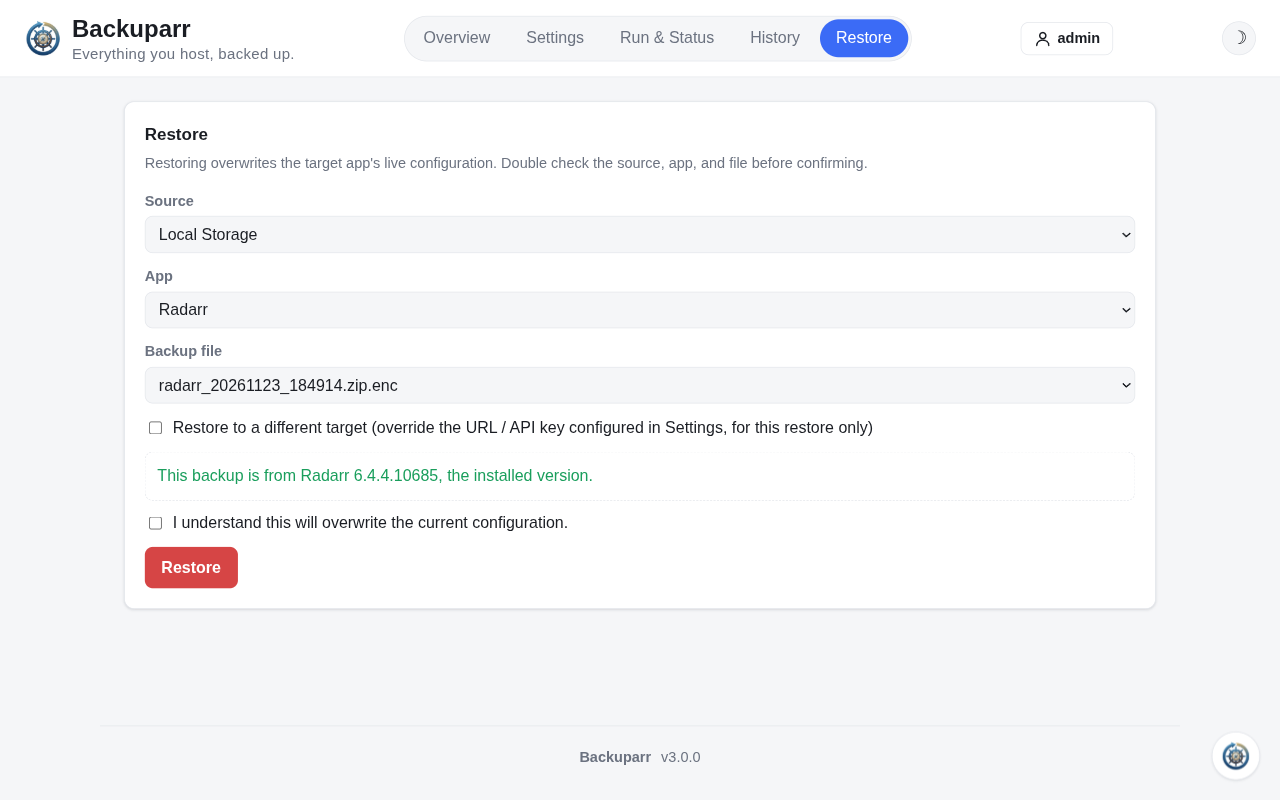
- On the Restore tab, pick the source (a destination), the app and a backup file.
- Backuparr checks the backup against the installed app (below). Once it passes, confirm the restore.
The restore shows live progress and a log.
An app Backuparr can’t restore itself (Profilarr, OPNsense, pfSense, UniFi, Unraid, Synology DSM, QNAP QuTS hero, Bitwarden) is listed too: picking it shows a Download button (decrypted, like History’s), the steps for restoring it by hand and a link to its page here, in place of Restore.
Restore to a different target overrides the app’s URL, key and other fields for that restore only, without changing Settings. Use it for a rebuilt or renamed instance, or for a trial restore on a throwaway copy. With a different URL, enter that app’s key too: the saved key, login and passwords only go to the app’s own URL. Its Service Authentication headers aren’t sent to a different scheme, host or port either.
The version check
A backup is only restored onto the exact app version it came from, so a restore never leaves an app half-migrated.
- When you pick a backup, Backuparr asks the running app for its version. If the versions differ, the restore is refused, and the message names the version to install. Install it, restore, then update the app as usual.
- LazyLibrarian has no release numbers, so the message names the commit that its Docker image tag starts with.
- Pi-hole’s version is its FTL version, shown at the bottom of Pi-hole’s web page (for example
FTL v6.8). - Bazarr, SABnzbd and Tdarr backups made before 2.5.0 don’t record a version. They restore with a warning.
- Emby, Plex, Seerr, LazyLibrarian and Vaultwarden must be stopped to restore. Pick the backup while the app is still running, then stop it and restore within 6 hours.
- Each download is also checked against the checksum recorded when the backup was made.
- An encrypted backup is decrypted after that check. One made with another encryption key asks for that key on the Restore tab: enter it and restore again.
What each restore does
Restored from the web UI:
- Radarr, Sonarr, Lidarr, Whisparr and Prowlarr: the app restarts.
- Bazarr: needs Bazarr’s config/backup folder mounted into Backuparr. Enter it under Bazarr backup folder unless it’s set in Settings. See the Bazarr note.
- Tdarr: wipes each database collection before refilling it; you’re asked to confirm.
- SABnzbd: asks for each Usenet server’s password. Leave any blank and set it in SABnzbd later. See the SABnzbd note.
- NZBGet: NZBGet reloads. See the NZBGet note.
- Tautulli: the config only - see the Tautulli note.
- Jellyfin: Jellyfin restarts. Read the Jellyfin note before restoring onto a new install.
- Immich: Immich restores in maintenance mode and restarts, also onto a new install - see the Immich note.
- Home Assistant: Home Assistant restarts, and a token made after the backup stops working - see the Home Assistant note.
- Pi-hole: Pi-hole restarts, and the backup’s passwords come back too - see the Pi-hole note.
- Emby, Plex, Seerr, LazyLibrarian and Vaultwarden: stop the app, restore, then start it again. See the Emby, Plex, Seerr, LazyLibrarian and Vaultwarden notes.
Restored by hand: Profilarr, OPNsense, pfSense, UniFi, Bitwarden, Unraid, Synology DSM and QNAP QuTS hero. The Restore tab gives the download and the steps, and each app’s page here has them too.
Restoring Backuparr itself
Backuparr’s own backup brings back its settings, destinations, cloud connections and login. It’s backuparr/backuparr_<date>_<time>.enc on each destination, and you can also download it from History. You need the encryption key you saved.
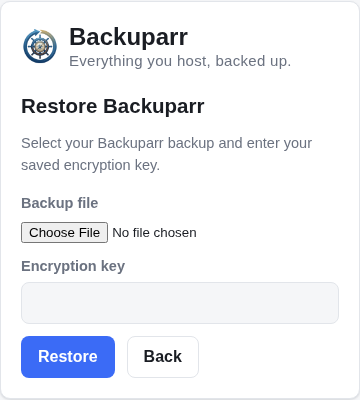
- On a new install: the setup screen asks “Do you wish to restore your Backuparr configuration?” Choose Yes, restore, pick the file and enter the key. Then sign in with your old username and password. This is only offered until an account exists.
- On a running install: use Restore Backuparr at the bottom of the Settings tab. It needs the file, the key, the admin password and a confirmation. It replaces the settings and login, and signs everyone out.
Good to know:
- The restored key becomes this install’s key. If
BACKUPARR_SECRETS_KEYis set to a different key, set it to the restored key (or remove it) and recreate the container. Until then, the restored passwords, API keys and cloud logins read as blank. - A backup from a newer Backuparr isn’t restored; update Backuparr first.
- A backup from before 3.0 isn’t restored either: restore it with Backuparr 2.5.7 (
rsaturns/backuparr:2.5.7), then update. - A wrong key or a damaged file is refused before anything changes.
Then restore your apps from the Restore tab as usual.