Settings
The Settings tab holds, from top to bottom:
- Apps - a card per app, grouped by category (Media Management, Downloaders, Media Servers, …). See Apps.
- Click a category to open or close it. Its header counts the enabled apps, with a dot that turns red when one of them failed its last backup. A category starts closed and opens once one of its apps is set up; after that it stays as you left it, in this browser.
- Within a category, enabled apps come first.
- On a card, switch the app on, enter its URL and API key, and click Test connection. The ? next to the app’s name opens its page in these docs, at Setting it up: where its key comes from and what else it needs.
- Encrypt backup is on unless you turn it off (see Encrypted backups).
- Server starts with Backuparr’s own card: its switch turns Backuparr’s own backup on or off.
- Destinations - see Destinations. Each card can set its own retention. Click its heading to fold it.
- Schedule & Notifications - the default retention, the schedule and the Notify URL. Under each retention field, a line says how much room its backups need.
- Service Authentication - see below.
- Restore Backuparr - see Restoring Backuparr itself.
App, destination and schedule changes apply when you click Save settings.
Prowlarr discovery
Optional. Enter Prowlarr’s URL and API key on its card and click Discover services: Backuparr fills in the Radarr, Sonarr, Lidarr, Whisparr, LazyLibrarian, SABnzbd and NZBGet that Prowlarr knows, letting you choose when there are several. Extra Radarr, Sonarr, Lidarr and Whisparr instances can be added with Add as instance.
- Only empty fields are filled, and nothing is saved until you save.
- Prowlarr masks API keys and NZBGet’s password, so Backuparr reads them from a temporary Prowlarr backup, which it then deletes. With Prowlarr on PostgreSQL, or a login proxy blocking
/backup/, only the URLs are filled in. If Prowlarr itself asks for a login, the card shows its username and password: fill them in and discover again. - The URLs are the ones Prowlarr uses; Test connection confirms Backuparr can reach them.
- Other fields, such as LazyLibrarian’s data folder, are entered by hand.
More than one instance
Radarr, Sonarr, Lidarr, Whisparr, Pi-hole, OPNsense, pfSense, UniFi, Immich, Home Assistant, Unraid, Synology DSM and QNAP QuTS hero can each run more than once. Click Add another under the app’s card and name the instance, such as 4K or Anime. Each instance has its own settings, backups, History and Restore entry, and can get its own authentication headers.
- The name also sets the instance’s backup folder and archive names:
4Kgivesradarr-4k/radarr-4k_<date>_<time>.zip.enc. Renaming it later keeps the folder. - Removing an instance keeps its backups; they stay in History, and retention keeps the newest.
- Up to 10 extra instances per app.
Trusting a certificate
Firewalls, NAS and other appliances often serve HTTPS with a self-signed certificate, which Backuparr refuses until you trust it on the app’s card. OPNsense, pfSense, UniFi, Unraid, Synology DSM, QNAP QuTS hero, Home Assistant and Bitwarden can be trusted this way.
- Click Test connection. It says the certificate isn’t trusted and shows it: its name and expiry, and its SHA-256 fingerprint when you point at the ? next to SHA-256 (or tap it).
- Compare the fingerprint with the one the app shows; its page here says where.
- If they match, click Trust, then Save. From then on Backuparr accepts only that certificate.
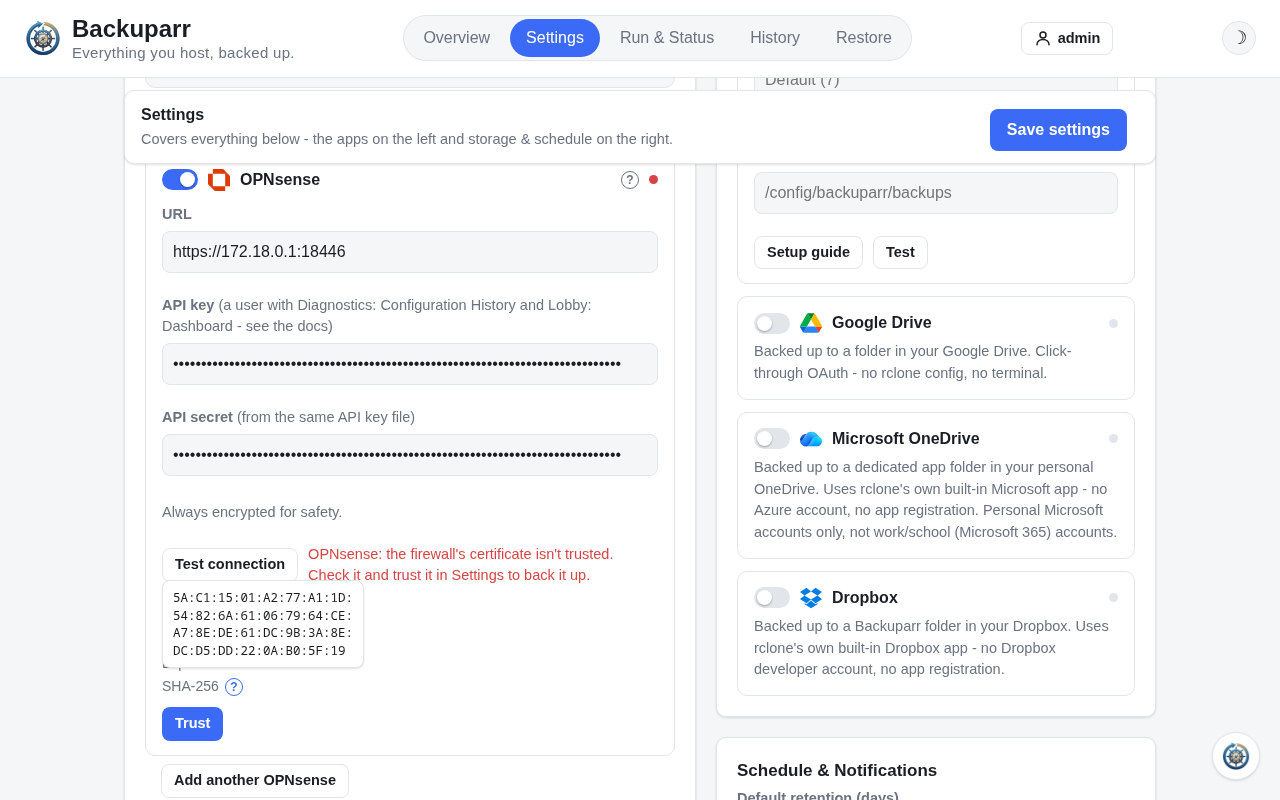
If the certificate changes (the app made a new one, or you replaced it), backups stop with “…certificate changed. Check it and trust the new one to resume backups.” Nothing is sent to the app until then. The failure on the Overview and in Run & Status links to the card: Test connection shows the new certificate next to the one trusted until now, and Trust (then Save) resumes backups.
A certificate from a trusted CA, such as Let’s Encrypt, is checked as usual and needs no trusting.
Service authentication headers
For apps behind an authenticating reverse proxy, add headers under Settings → Service Authentication. They’re sent with every request to the apps - tests, discovery, backups and restores - but never to cloud destinations, OAuth providers or notification webhooks. Values are encrypted like API keys.
- A header goes to all apps unless you open Apps under it and pick some. One header name can be used on several rows, as long as no app gets it twice.
- An app’s own authentication wins over a header of the same name - NZBGet’s
Authorization, Jellyfin’sAuthorization: MediaBrowser. Use another header name (such asProxy-Authorization) for the proxy. - A configured
Cookieis added alongside the app’s cookies; a cookie the app already set wins. - Requests to an app with headers must stay on its configured scheme, host and port, redirects included, so use its final URL.
BACKUPARR_ALLOW_CROSS_HOST_REDIRECTSdoesn’t override this. - When an app’s answer is HTTP 401 or 403 and headers are set, the error also points here: a proxy refusing a request looks the same as the app refusing a wrong API key.
- Generate Basic authentication turns a username and password into a
Basic …value for the header you choose, in your browser; only the header is saved.
If the API and backup downloads have different access rules, run a backup as well as Test connection.