Backups and history
Schedule and Run now
Set the schedule under Settings → Schedule & Notifications: daily, weekly, every few hours, or a 5-field cron schedule. Changes apply without a restart. If a saved schedule isn’t valid, no scheduled backups run, and the Overview and Run & Status say so until you fix it in Settings.
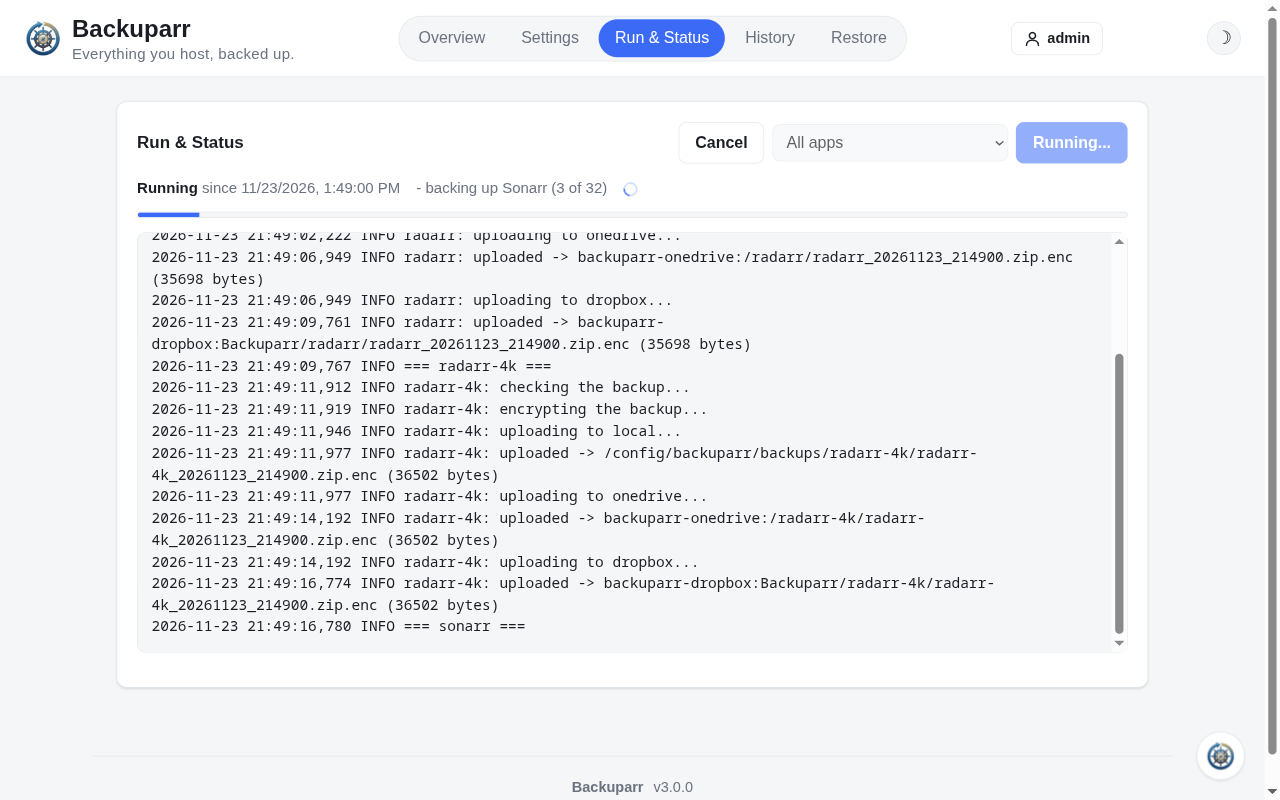
Run & Status → Run backup now backs up every app, or the one you pick (Backuparr itself included), and shows the run live. A backup and a restore never run at the same time.
The Overview
Under At a Glance, one line sums up the latest backup of every enabled app and instance, and of Backuparr itself: “All 17 backups succeeded”, or “15 of 17 backups succeeded” with a line for each one that failed, its error included. Click a line to jump to that app’s card, which has its log. A backup that failed on one destination counts as failed. An app with no backup yet isn’t a failure: the line says how many aren’t backed up yet. While a backup runs it says “Backing up…”, and it updates when the run ends.
Each run and Storage needed say how much room your backups take: see How much room backups need.
Retention
Default retention (days) deletes each app’s backups older than that, counted from when the run started, separately on each destination. Each app’s newest backup is always kept, so a run of failed backups never removes the last good one. Backuparr only deletes its own archives (<app>/<app>_<date>_<time>.<ext>, the app’s own file type, with .enc added when encrypted), so a destination folder can hold other files. On Google Drive and OneDrive, deleting is permanent: backups don’t go to the trash or recycle bin, which would still count against your storage.
To keep backups longer or shorter on one destination, set Retention (days) on its card under Settings > Destinations - for example 28 days on Local Storage and 7 on Google Drive. Left blank, a destination uses the default. Once a destination has its own, the Overview shows each destination’s retention.
How much room backups need
On the Overview, Each run is what one run uploads: each app’s largest backup still kept, Backuparr’s own included, added up. An app with no backup yet isn’t counted; the tile says how many there are.
Storage needed is the room on each destination: each run times the most backups of each app its retention keeps, plus what it keeps there of each app that’s switched off - its backups younger than the retention days, until they age out, and its newest for good. Retention keeps the scheduled runs within its days, and one more while a run uploads, before it deletes the oldest: a daily schedule with 7 days’ retention keeps up to 8 backups of each app. Beside it are what Backuparr’s backups use there now and the destination’s free space, shown as “only … free” when it isn’t enough. On Google Drive, OneDrive and Dropbox, the free space is the whole account’s.
Under each retention field in Settings, a line says how many backups of each app it keeps and the room they need. It changes as you change the retention, the schedule or which apps are on, before you save.
It’s an estimate:
- Each app counts at its largest backup still kept. After Plex, Jellyfin or Emby stop backing up their metadata, say, the estimate stays high until retention deletes the larger backups.
- Run backup now adds a backup of each app it backs up, kept until it’s older than the retention.
The check before upload
Each backup is checked before it’s uploaded:
- The archive opens and reads back intact.
- Its SQLite databases pass a quick check.
- The files the app’s restore needs are in it.
A backup that fails isn’t uploaded, and the app shows as failed with the reason. An encrypted backup is checked again after encryption: it must decrypt back to the archive that passed.
Run logs
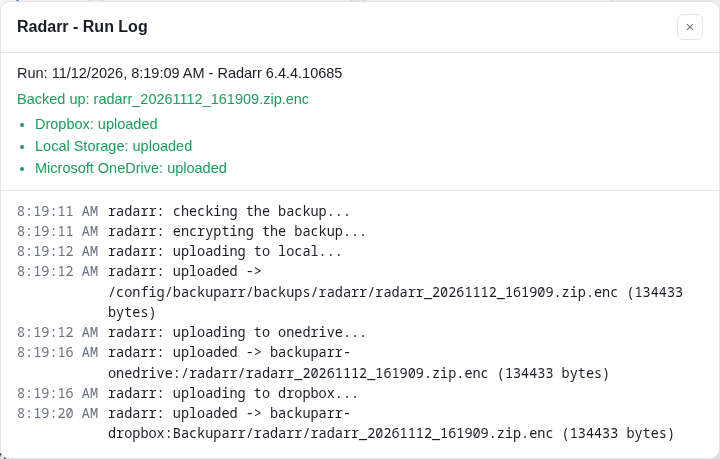
Each app’s log from each run is kept for as long as retention keeps that run’s backups (the longest retention, when destinations differ), and its latest run is always kept.
- View log on an app’s Overview tile shows its latest run.
- On the History tab, each backup has its own log. A run that left no backup on that destination is listed greyed out as Backup failed; its log says why.
History
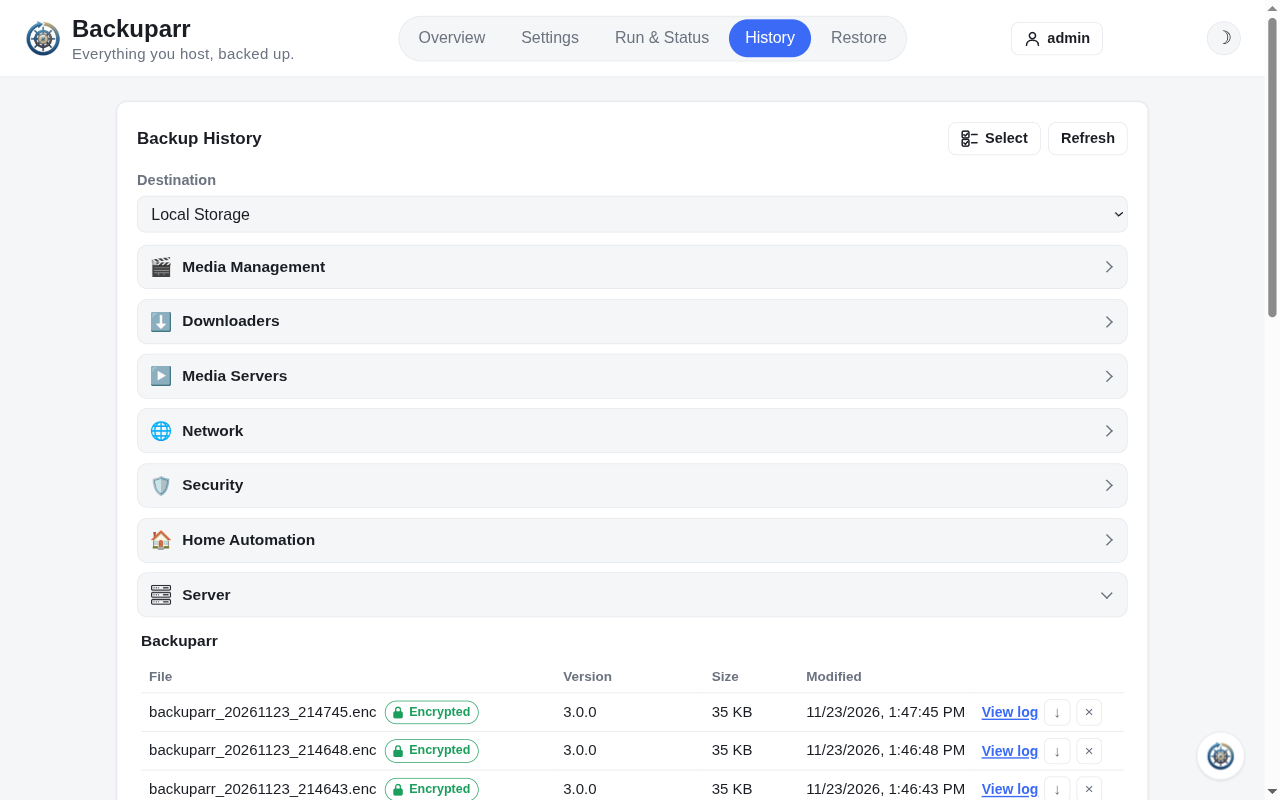
Pick a destination to list each app’s backups there, with their size, date, the app version each one came from, and whether it’s encrypted. You can download or delete any of them, or open its log. An encrypted backup downloads decrypted - see Encrypted backups. Other files kept in Backuparr’s folders aren’t listed, so History never deletes them.
The apps are grouped under the same categories as on Settings, each with a header that folds it away; Backuparr’s own backups are under Server. Which categories are folded is remembered in your browser.
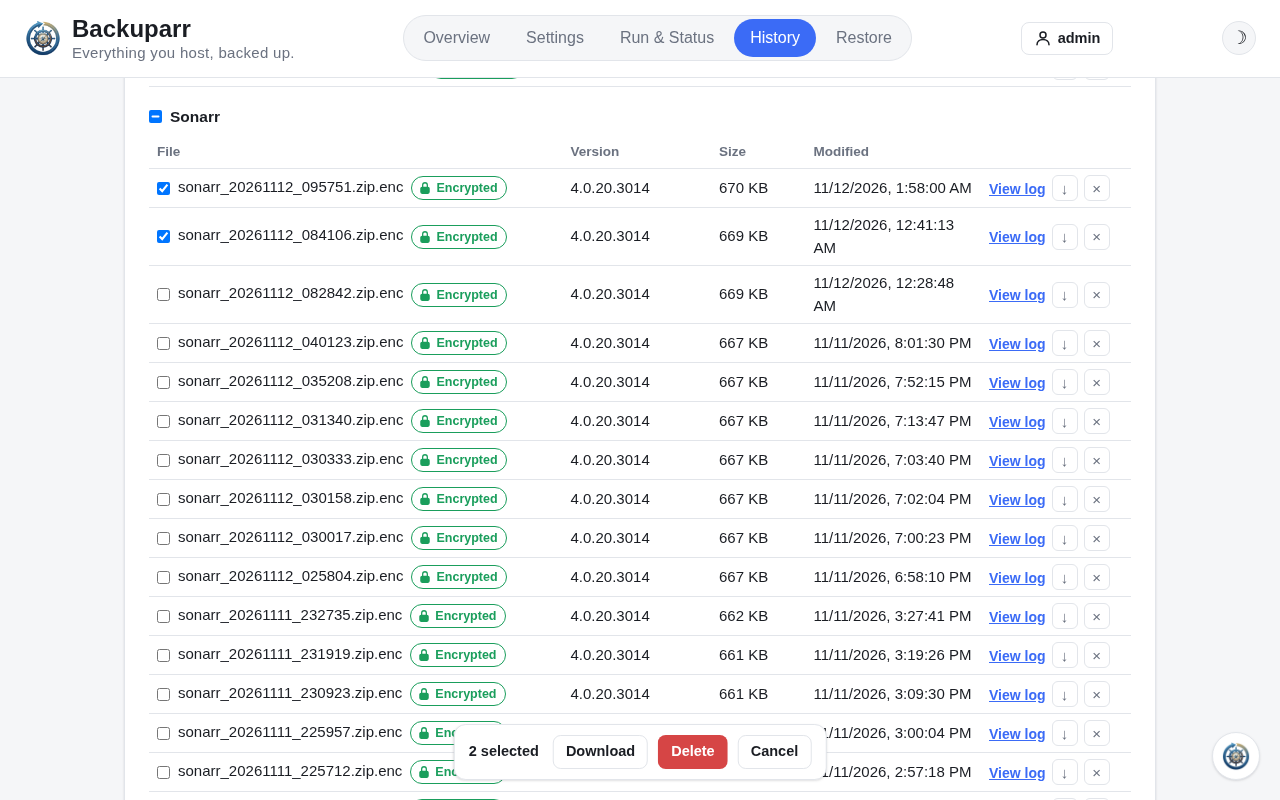
Several at once: click Select, tick the backups (or a whole app with the box beside its name), then use the bar at the bottom of the window:
- Download gets one backup as usual, or several in one zip, each as a single download would give it. The bar shows “Preparing 3 of 5…” while Backuparr builds the zip, then the download starts.
- Delete removes them after one confirmation, counting up (“Deleting 3 of 10…”). Any that couldn’t be deleted stay ticked, and the bar says why. A failed run’s row can be ticked and deleted too, which removes it from this destination’s History.
- Cancel leaves the selection.
While the bar is busy, the selection can’t change.
The backup record
manifest.json, beside config.json, records each backup Backuparr made:
- the destinations holding it
- the app version it came from, and Backuparr’s version
- its size and SHA-256 checksum (of the file as stored, so of the encrypted file when it’s encrypted), and whether it’s encrypted
Restores use it to check the app version and the download. Backuparr keeps it up to date; don’t edit it.
Backups made before 2.5.0 are added in the background after updating, each read once:
- Local Storage is read first. A cloud copy of a backup already read there isn’t downloaded.
- Any other backup on Google Drive, OneDrive or Dropbox is downloaded once.
- This pauses while a backup or restore runs. Later startups only read backups that aren’t recorded yet.
- On a slow or metered connection, set
RCLONE_BWLIMIT. - Bazarr, SABnzbd and Tdarr backups from before 2.5.0 don’t hold a version, so theirs stays unknown.