Login and security
Login
The admin account from the setup screen is required by default. To change its password, click your username at the top right and choose Change password: enter the current password and the new one twice (at least 8 characters). Every other signed-in browser is signed out, and wrong current passwords count towards the login lockout.
Signing out ends the session on the server too, so a copy of its cookie stops working. Backuparr keeps the list of signed-in browsers in sessions.json, as hashes, never the session ids themselves.
Authentication at a reverse proxy: if your proxy (e.g. Authelia) already protects every request, set BACKUPARR_DISABLE_AUTH=true and recreate the container. The UI and API then need no local login, and the setup, login, logout, password change and reset endpoints return 403. Block direct access to ports 8990 and 8991: anyone who reaches them has full access, stored credentials included.
HTTPS
Backuparr answers on two ports:
- 8991, HTTPS, always on. Your password, session and API keys are encrypted on the way.
- 8990, plain HTTP, until you switch on HTTPS only. Everything there, your password included, crosses the network readable.
On first start Backuparr makes a self-signed certificate, so your browser warns the first time: check that the SHA-256 fingerprint it shows matches the one on the Backuparr card (Settings, Server: point at the ? next to SHA-256, or tap it), then continue. The certificate lasts 825 days, the longest Apple devices accept, and is renewed 30 days before it runs out with the same key, so Home Assistant’s integration keeps trusting it. It’s in /config/backuparr/tls/ and in Backuparr’s own backup, so a restored install keeps it.
Your own certificate: set BACKUPARR_TLS_CERT and BACKUPARR_TLS_KEY to a PEM certificate (with its chain) and its unencrypted key, for example files in /config/backuparr/. Backuparr checks them twice a day and loads replaced files without a restart. If they can’t be used, the Backuparr card and the log say why, and Backuparr serves its own certificate meanwhile.
HTTPS only: switch it on on the Backuparr card to close port 8990 straight away. It can only be switched on from a page opened over HTTPS on port 8991, so it can’t lock you out of a container that doesn’t publish that port. BACKUPARR_HTTPS_ONLY=true does the same from your compose file and locks the switch; if you’re ever locked out, set BACKUPARR_HTTPS_ONLY=false and recreate the container. Restoring Backuparr’s own backup keeps this install’s HTTPS only setting.
Behind a reverse proxy: nothing changes. Keep BACKUPARR_FORCE_HTTPS and BACKUPARR_TRUSTED_PROXY, and point the proxy at http://backuparr:8990 or https://backuparr:8991. To switch on HTTPS only, the proxy must use 8991.
Signing in over HTTP and over HTTPS are separate: each keeps its own login.
Forgot your password?
There’s no email recovery. There are two ways back in.
Keep your settings: delete auth.json from Backuparr’s config folder (/config/backuparr), then open Backuparr. The setup screen asks for a new username and password, and your encryption key.
- Your settings, cloud connections, backups and run logs are kept.
- Every other signed-in browser is signed out.
- Wrong keys count towards the login lockout.
- Lost the key as well? It’s in
secrets.keyin the same folder, unless you setBACKUPARR_SECRETS_KEY.
Start over: click Reset Backuparr on the login screen. After two confirmations it wipes local state and returns to the setup screen of a new install:
- every app’s settings and API key, and every cloud connection
- the admin account
- Backuparr’s backups in Local Storage, its own backups included (other files in that folder are left alone)
- the backup record and run logs
Backups already in Google Drive, OneDrive or Dropbox are untouched. While a backup or restore is running, the reset waits: try again when it finishes.
The reset works without logging in, gated only by a confirmation phrase that’s public in this repo. Other websites can’t trigger it (or any other change): Backuparr only accepts changes sent as JSON from its own page. Still, don’t expose Backuparr’s ports to an untrusted network - put it behind a reverse proxy with its own login.
Encryption at rest
These are encrypted in config.json:
- every app’s API key or token, password and 2FA device token, and OPNsense’s API secret
- service authentication header values
- Google Drive’s client secret, API key and refresh token, and OneDrive’s and Dropbox’s tokens
- the Notify URL
The key is secrets.key, generated on first run; set BACKUPARR_SECRETS_KEY to keep it off the volume. rclone.conf is encrypted with rclone’s own config encryption, using a generated password in rclone.pass (or RCLONE_CONFIG_PASS). Encryption is always on.
If the key changes (say, a mistyped BACKUPARR_SECRETS_KEY), the stored secrets show up blank but aren’t lost: saving settings keeps them encrypted as they were, and they work again once the original key is back.
Encrypted backups
App backups are encrypted with your encryption key before they’re uploaded, so a destination only ever holds files it can’t read. An encrypted backup is named <app>_<date>_<time>.<ext>.enc (for example radarr_20261108_030000.zip.enc), and History and the Overview mark each backup Encrypted or Not encrypted.
- Encrypt backup on each app’s card under Settings turns it off for that app. It’s on for every app unless you turn it off, including apps set up before 3.0 (Backuparr says so once after the update).
- Apps whose backups hold secrets that must never sit readable anywhere have no option: their card says “Always encrypted for safety”.
- Backups made before encryption, or with it off, stay as they are and still restore.
- Each backup is checked before encryption (see The check before upload), and the encrypted file is checked to decrypt back to it before it’s uploaded.
- Encrypting needs room for a second copy of the backup in the container’s temporary folder while it runs.
Downloading: a backup downloaded from History or the Overview is decrypted first, and Backuparr then warns that the file on your computer can be read by anyone with access to it. Backuparr’s own backup downloads as it is (still encrypted), ready for Restoring Backuparr itself.
Restoring decrypts the backup for you. A backup made with another key - say, from an install whose key you saved - asks for that key on the Restore tab.
Decrypting without Backuparr
The image has a decrypt command. With the key in BACKUPARR_SECRETS_KEY, or typed in when asked:
docker run --rm -it --user "$(id -u):$(id -g)" -v "$PWD:/work" \
  rsaturns/backuparr decrypt /work/radarr_20261108_030000.zip.enc
It writes radarr_20261108_030000.zip beside it, and never overwrites a file. In a running Backuparr container, docker exec -it backuparr python /app/decrypt.py <file> uses the install’s own key. Backuparr’s own backup becomes a .zip, though the secrets in its config.json stay encrypted; one from before 3.0 needs Backuparr 2.5.7.
The format
For anyone writing their own tool, each encrypted file is:
| Part | Size | |
|---|---|---|
| Magic | 8 bytes | BKPARR, a zero byte, then the format version (1) |
| Salt | 16 bytes | random for each file |
| Chunk size | 4 bytes | big-endian; 1 MiB |
| Key check | 16 bytes | from the key derivation below |
| Chunks | the rest | each chunk of the archive, AES-256-GCM encrypted, with its 16-byte tag |
The encryption key is 44 characters of URL-safe base64; its 32 decoded bytes and the salt go into HKDF-SHA256 (info backuparr archive v1) for 48 bytes: the first 32 are the file’s AES-256 key, the last 16 the key check. Chunk n (from 0) uses the nonce n as 11 big-endian bytes followed by 01 for the last chunk or 00 for any other, and the 44-byte header as associated data. The last chunk may be empty.
Your encryption key
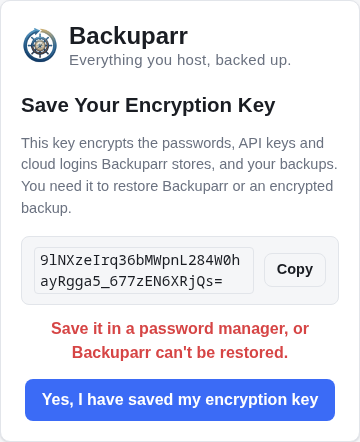
The key that encrypts those secrets also encrypts your backups and Backuparr’s own backup (below). After the admin account is created, and once after updating to 2.5.0, Backuparr shows the key and does nothing else until you confirm you’ve saved it. It’s never shown again, so save it in a password manager: without it, encrypted backups and Backuparr’s own backup can’t be opened, and its stored secrets can’t be read. If you set BACKUPARR_SECRETS_KEY, that’s the key shown.
Backuparr’s own backup
At the end of each full run (not a single app’s), Backuparr backs up its own configuration to every destination as backuparr/backuparr_<date>_<time>.enc, kept like the app backups: its settings and destinations, the cloud connections, the admin login, the backup record, the run logs and its own HTTPS certificate (not yours from BACKUPARR_TLS_CERT). It’s encrypted with your encryption key and can’t be read or changed without it. The key itself, the session key and rclone.pass aren’t in it.
It has its own Backuparr card under Server on the Settings tab: switch it off there. Run & Status can back it up on its own (pick Backuparr). History lists these backups under Server, for download and delete, and the Overview shows the latest one on its Backuparr card. See Restoring Backuparr itself.
Home Assistant’s token
The Home Assistant integration has a token of its own, kept only as a SHA-256 hash. It opens nothing but its two read-only status addresses, is needed even with BACKUPARR_DISABLE_AUTH, and a wrong one counts towards the login lockout. Switching the integration off removes it.